

Camera Preview
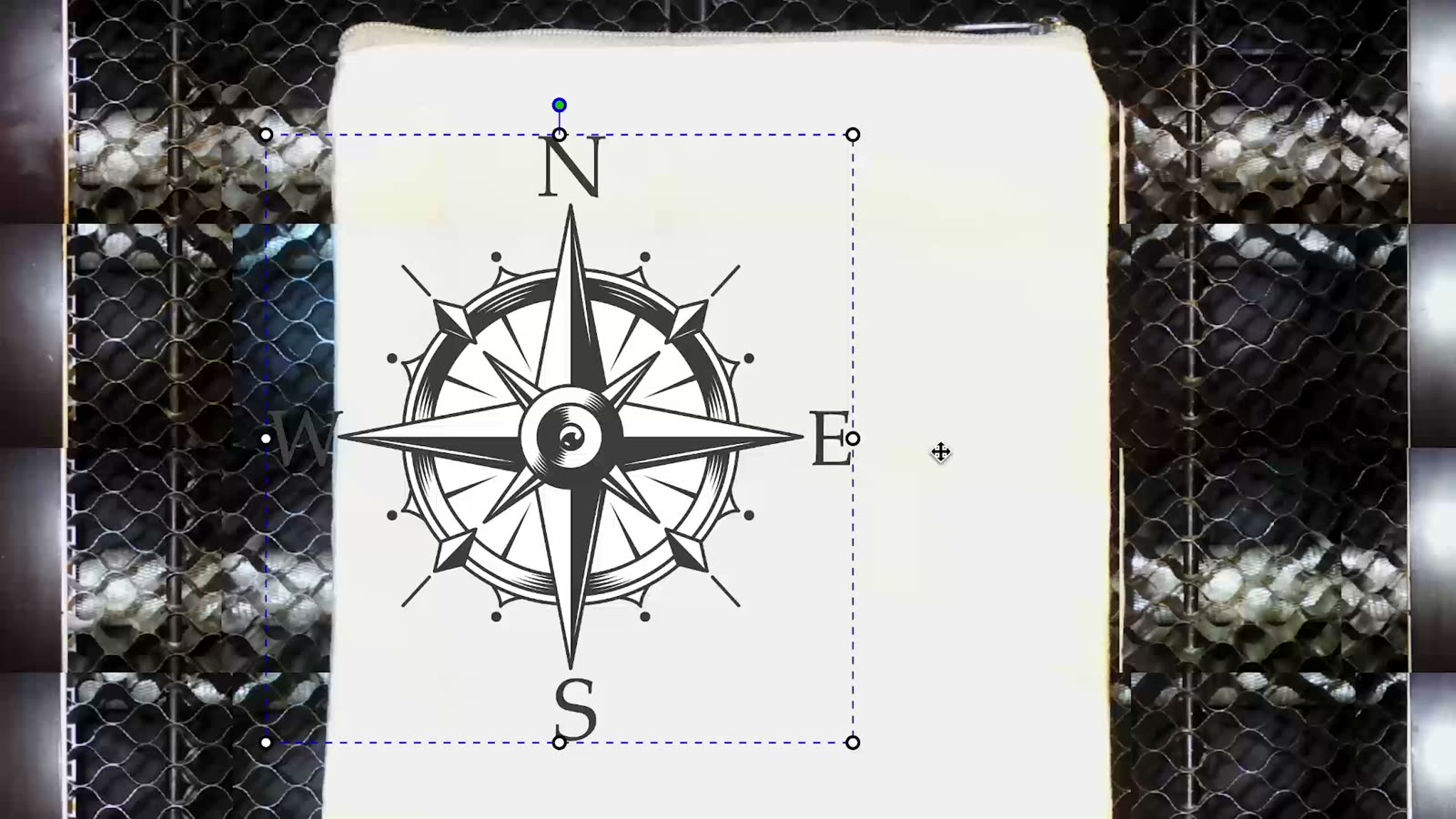
See the workpiece inside Beam Studio and place artwork directly where it belongs.
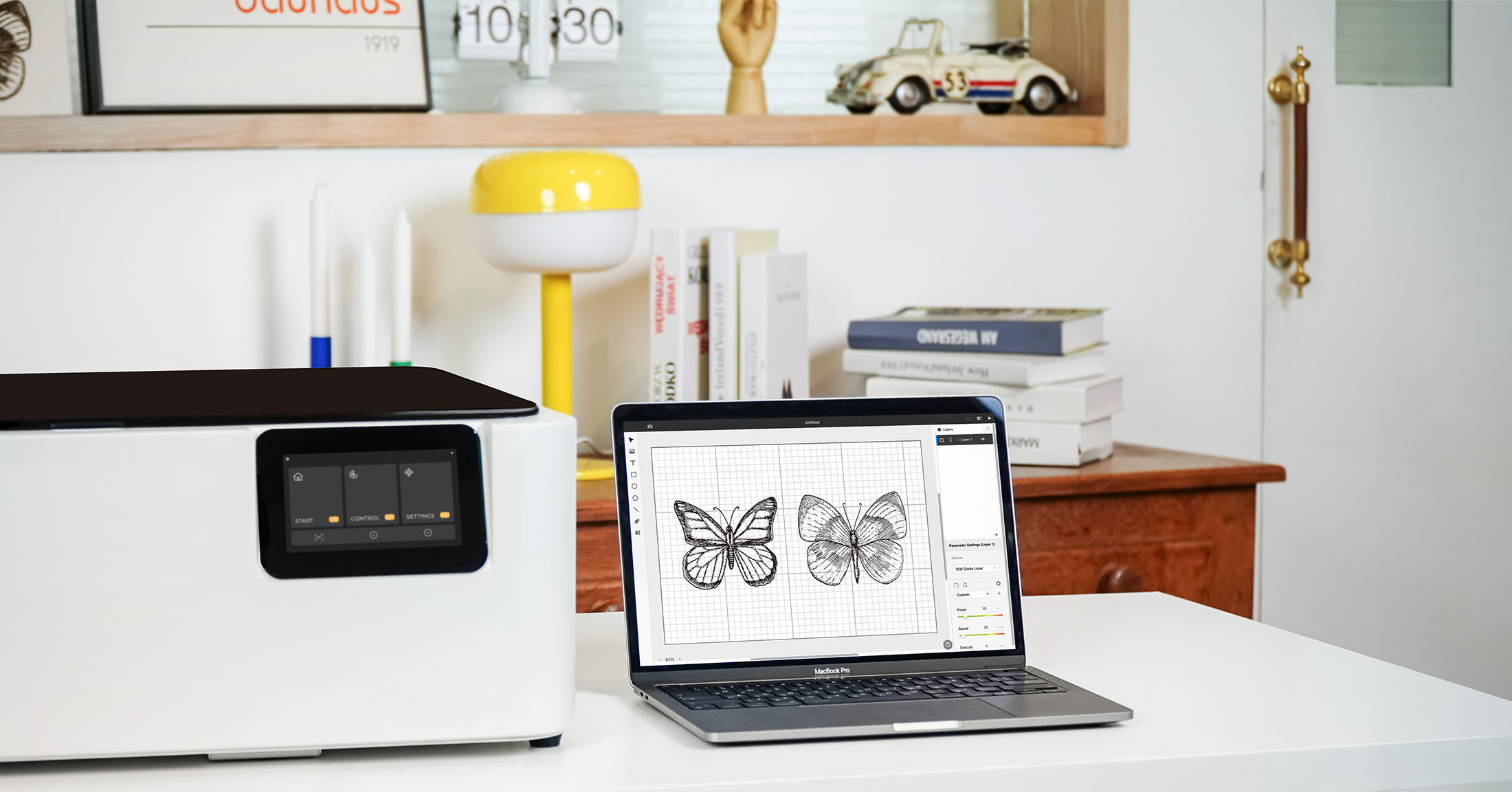
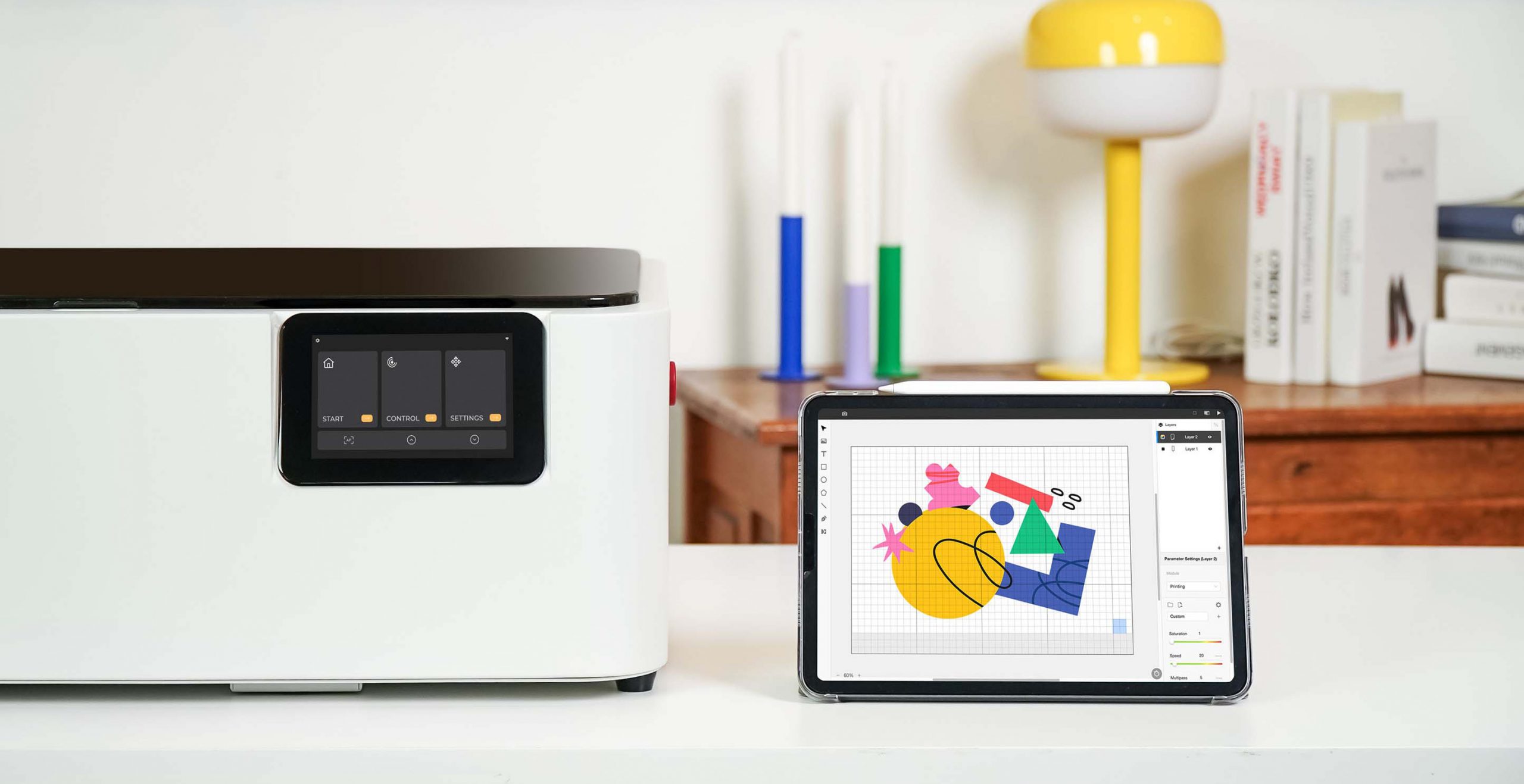
Beam Studio is free design software built for FLUX laser machines. Edit artwork, preview placement with the camera, manage layers and process settings, then send the job directly to your machine.
From placement to material settings, the essentials stay close and visual.
See the workpiece inside Beam Studio and place artwork directly where it belongs.
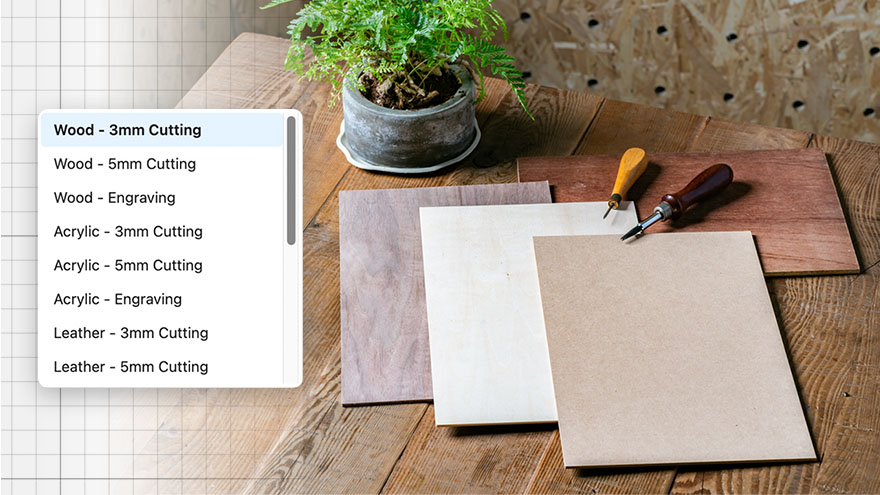
Start with tested material settings, then fine-tune power and speed for your project.

Shape type, align copy and prepare personalized names without leaving the canvas.
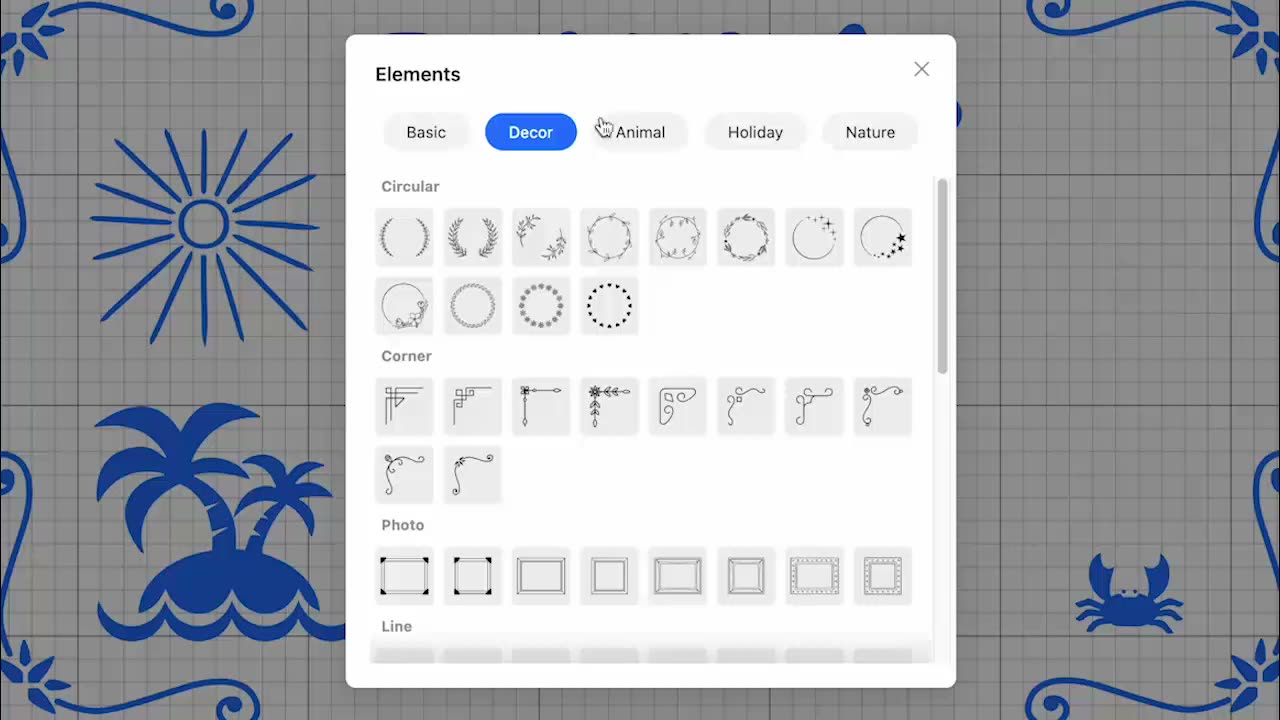
Build a composition faster with ready-to-use elements made for laser projects.
Clean up imagery, organize production and keep projects within reach.
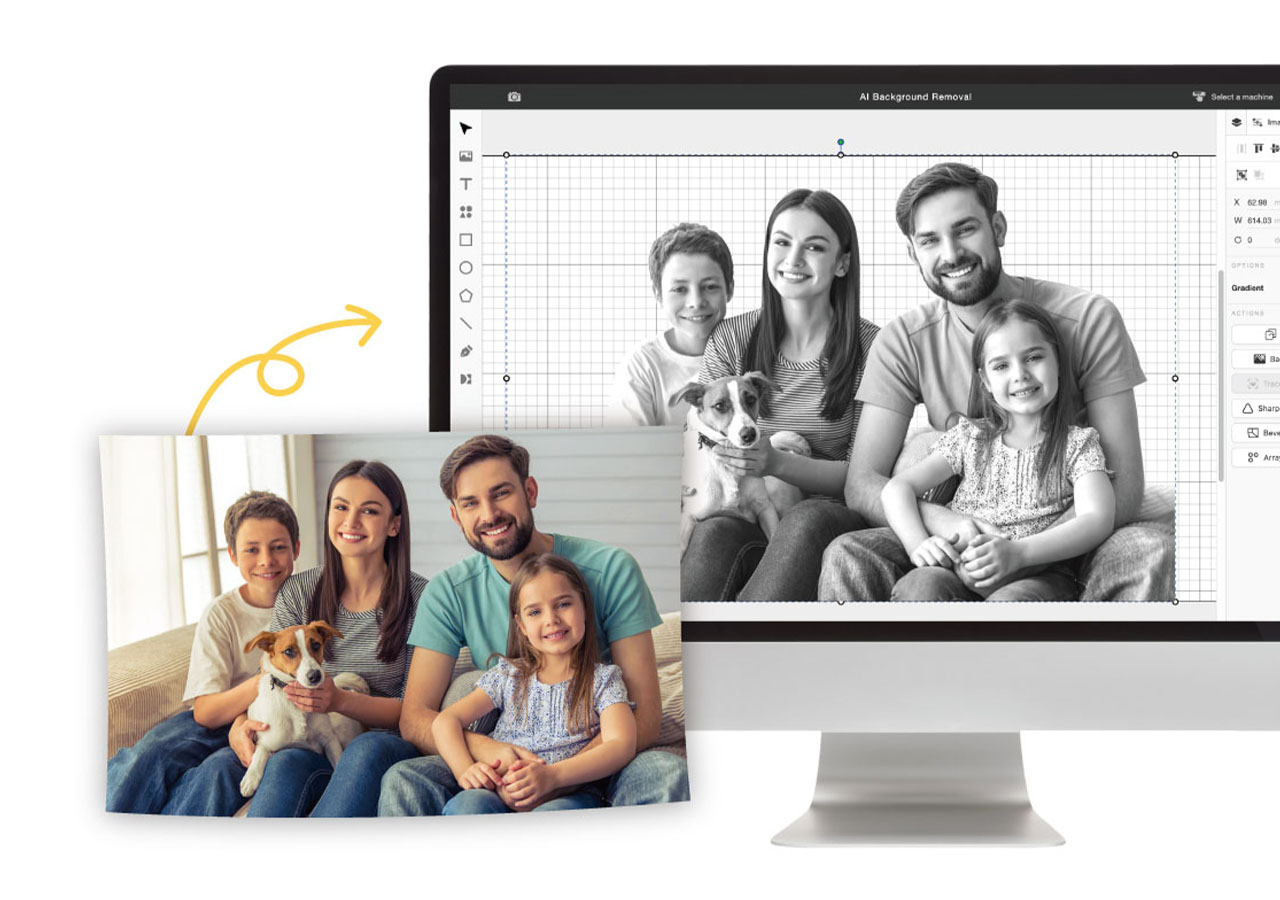
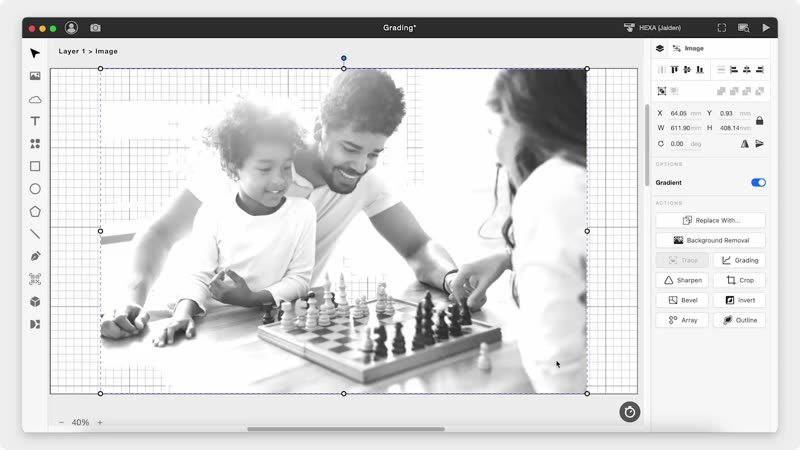
Clear a photo background in one click and keep the subject ready for engraving.
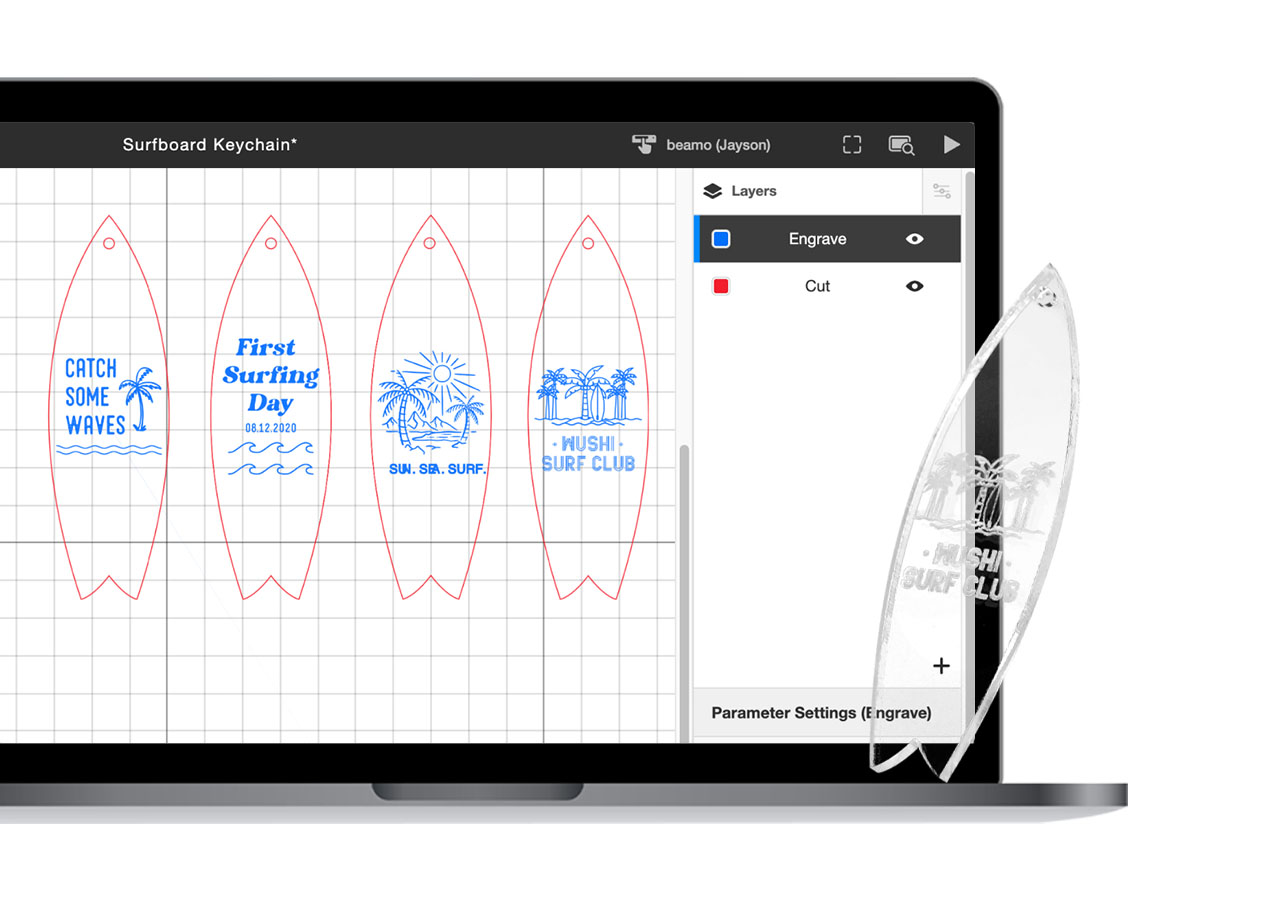
Give every layer its own process, speed and power while keeping the full job organized.
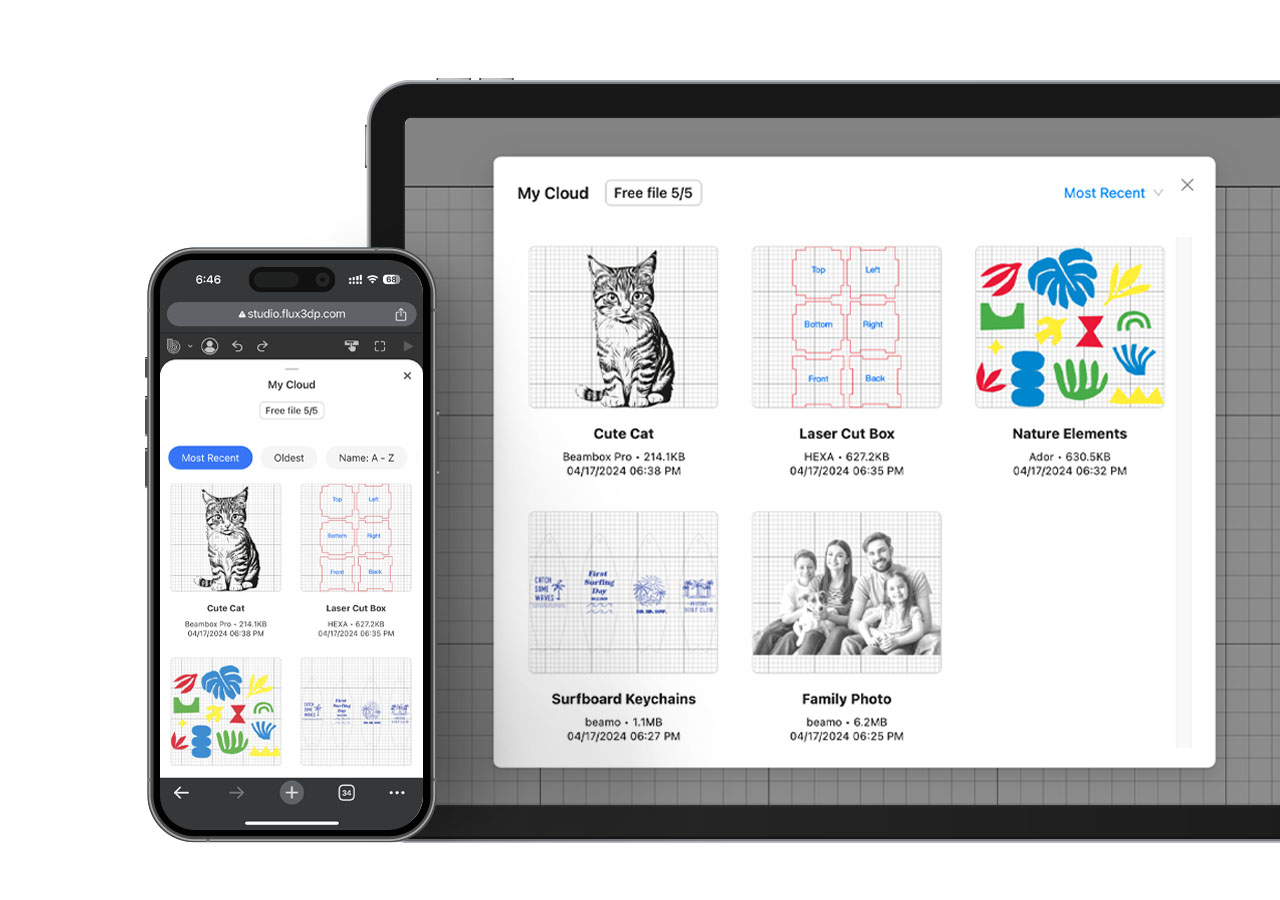
Keep projects close across devices and reopen your workspace whenever inspiration returns.

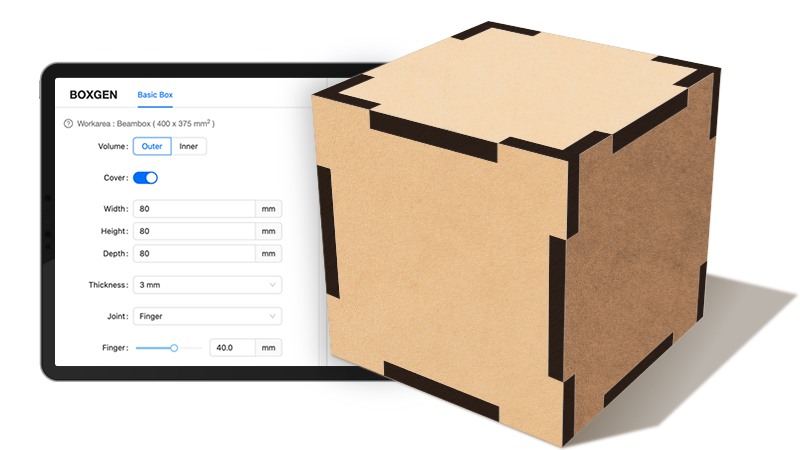
Set dimensions and material thickness, then generate panels that are ready to cut and assemble.

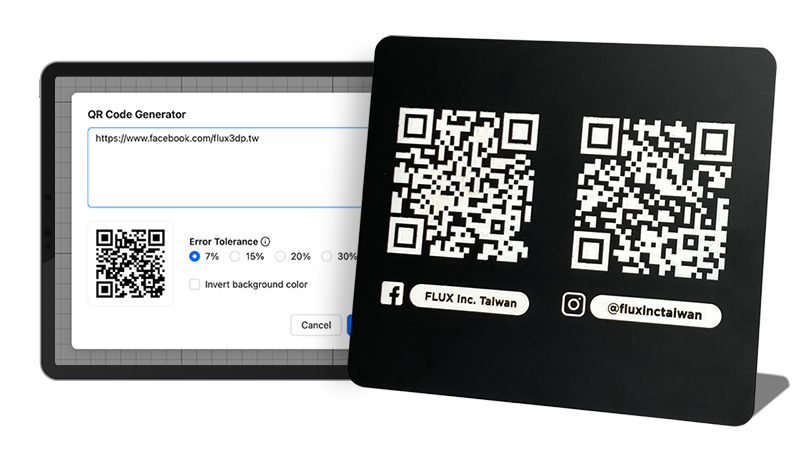
Turn a URL or message into a clean vector QR code and place it directly in your design.
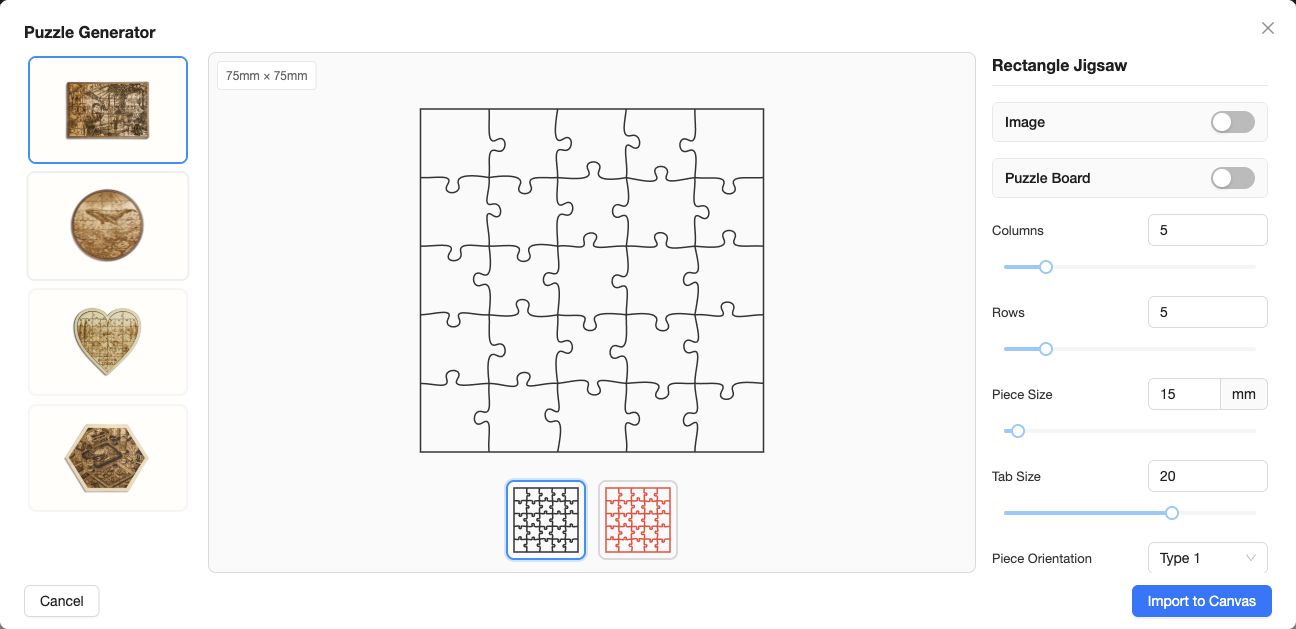
Create rectangular, circular, heart, or hexagonal jigsaws and adjust rows, columns, piece size, and tab style before importing the result to your canvas.
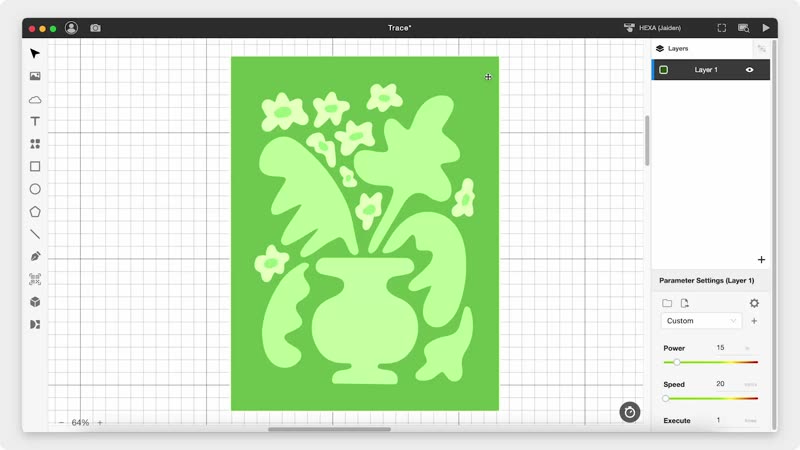
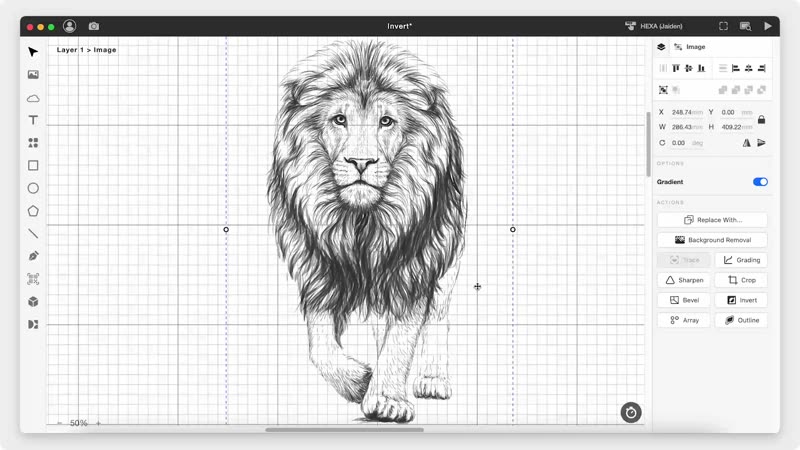
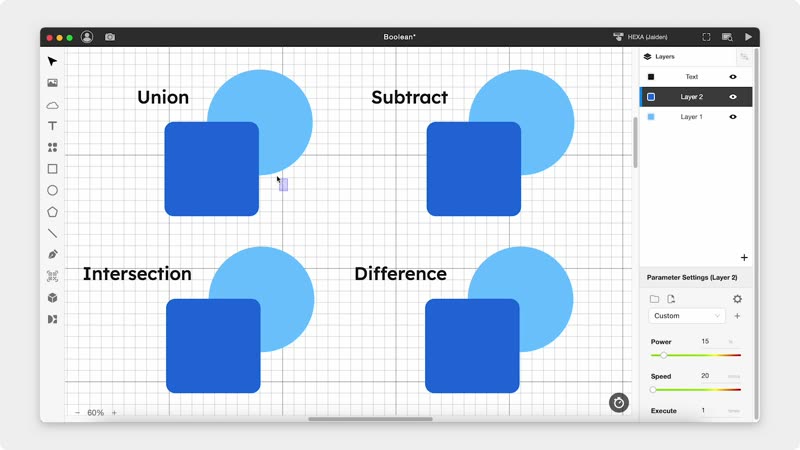
Refine shapes, layouts and imagery—from one-off pieces to repeat production.
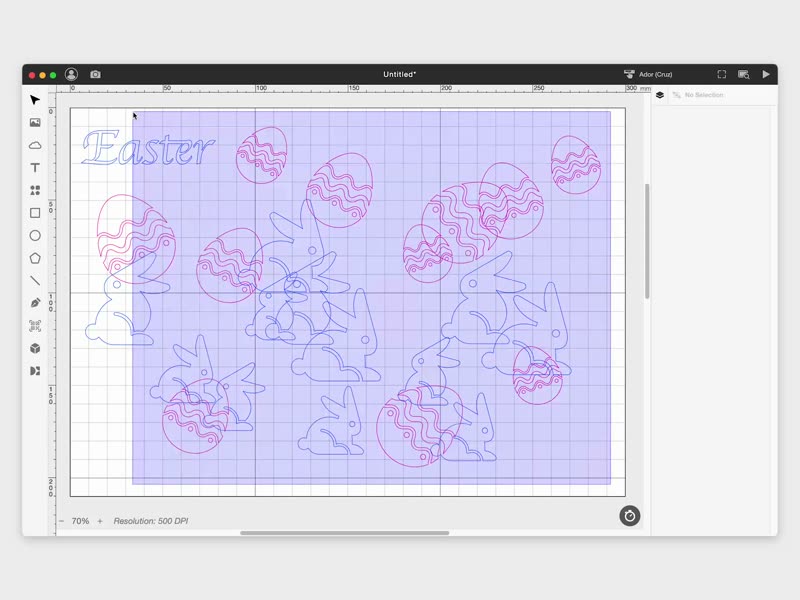
Arrange shapes efficiently to make better use of every sheet.
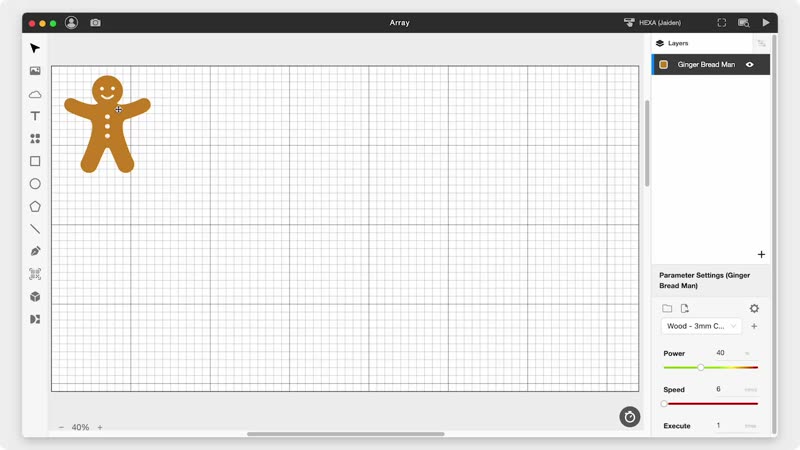
Duplicate objects into precise rows and columns for batch work.
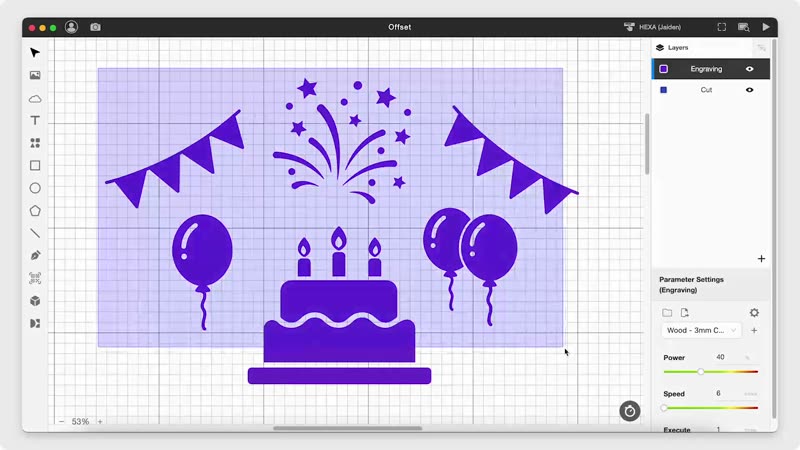
Create borders, inlays and cut lines at a controlled distance.
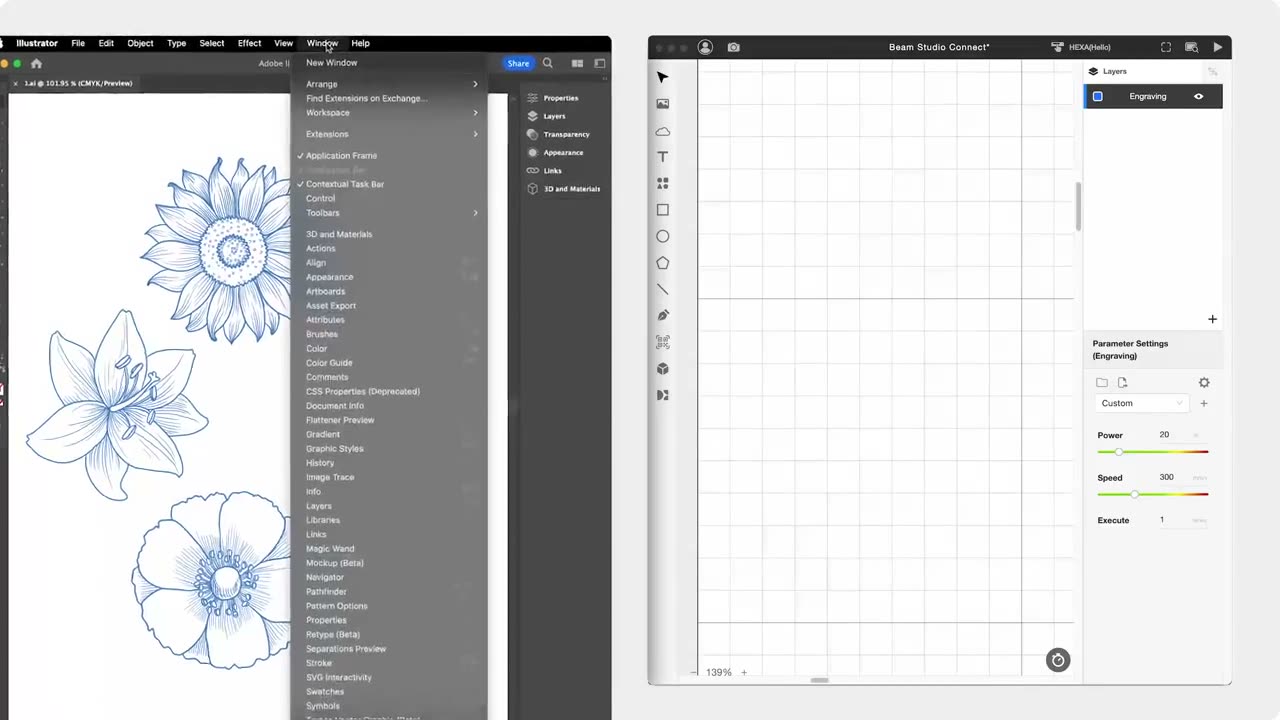
Bring work from the tools you already know, then finish placement and production settings in Beam Studio.

Adobe Illustrator

Adobe Photoshop

Affinity Designer

AutoCAD
SketchUp

SolidWorks

Sketch

CorelDRAW

Rhinoceros 3D
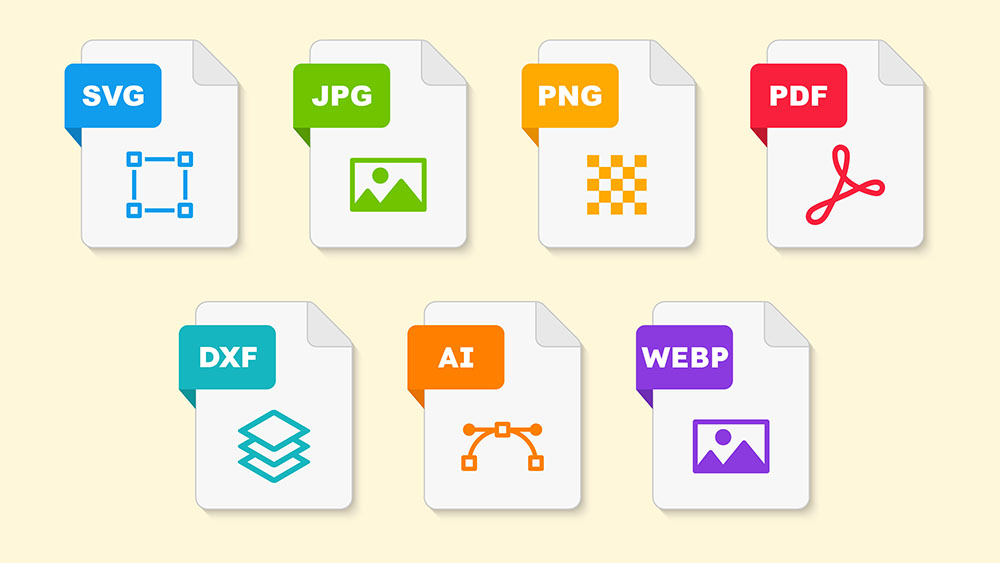
One-click to import your work from Illustrator for a smooth workflow.
Get Beam Studio ConnectFLUX laser cutters can connect to and receive commands from multiple computers or mobile devices using Beam Studio.
Beam Studio ships with an easy JavaScript API, so your own software can load designs, start jobs, and track progress on FLUX machines — ideal for automation and custom production workflows.
Download the desktop app or open Beam Studio directly in your browser.
“A surprisingly robust layer system, like the one you would find on good image editing software.”
Victor · Reviewer on GSMArena
Follow practical lessons from your first file through camera preview and process settings.
Explore lessons
Find an answer in the Help Center or send our support team a request.